Sharing links to songs, apps, books, and other products has become a big part of online culture. Whether you’re sharing a favorite album, a book that inspired you, or the latest and greatest smartphone, you’re actively giving these makers a chance to be heard, seen, or even the opportunity to make a sale. For example, here on The App Factor we care about our readers and don’t want intrusive ads blocking or convoluting our posts. We rely solely on affiliate revenue and want to make your reading experience one you can enjoy.
If you’re already sharing links to products, it’s a great idea to be compensated if people buy through your link. Affiliate programs can be found all over the web. In this post I’m going to focus on two of my favorites: Apple and Amazon.
The first thing you’re going to want to do is sign up to get your own affiliate codes for both platforms (you’ll need to enter both of these later). For Apple, you can apply right here, and for Amazon you can sign up here. The best part? It’s absolutely free to be part of the affiliate programs from both Apple and Amazon.
Once you’re registered, these 2 great apps make sharing your affiliate links easy:
Blink by Squibner
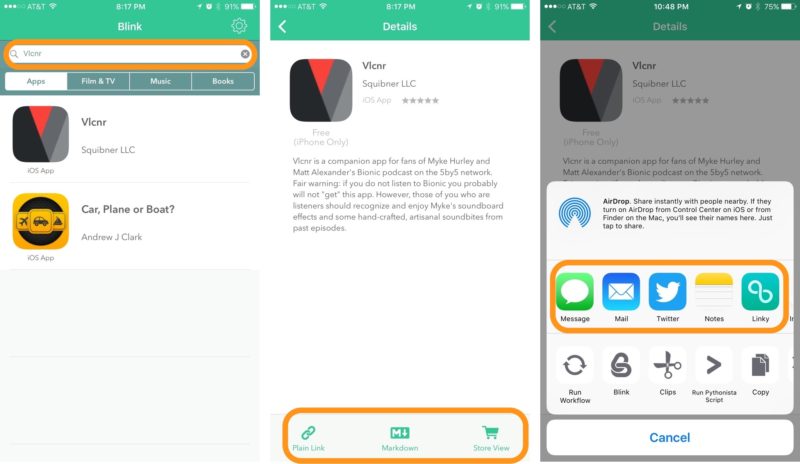
Squibner makes some fantastic apps, and when John Voorhees announced Blink, tons of folks gave it glowing reviews. John is always updating the app, and has talked about its creation and about being an app developer on his podcast with Robb Lewis, called Ruminate. Blink helps you search multiple App Stores, with filters for apps, film & TV, music, and books. Once you’ve found the content you want, you can make a plain link, a Markdown link, or view it in the App Store. If you’re already searching for apps in one of the stores, you can also use the handy action extension to make a link right from any product page. This makes sharing links seamless and easy. Once you’ve got your link, you can share to Twitter, iMessage, email, on your website, and anywhere else you can copy and paste links to.
How to create an affiliate link with Blink:
- First, hop into the settings section of Blink and make sure you’ve input your affiliate token.
- Search Blink or use the action extension in an App Store to find the item you want to link to.
- Choose either a Plain Link, Markdown Link or Store View.
- Share to your platform of choice by pasting the link.
- $4.99 – Download
Workflow by DeskConnect
If you don’t already have Workflow, you’re truly missing out on lots of great things your iPhone and iPad can do. Like Blink, Workflow has become a staple in my day to day life. If you have any experience with Automator for Mac, Workflow is similar, but for the iPhone and iPad — and even the Apple Watch!
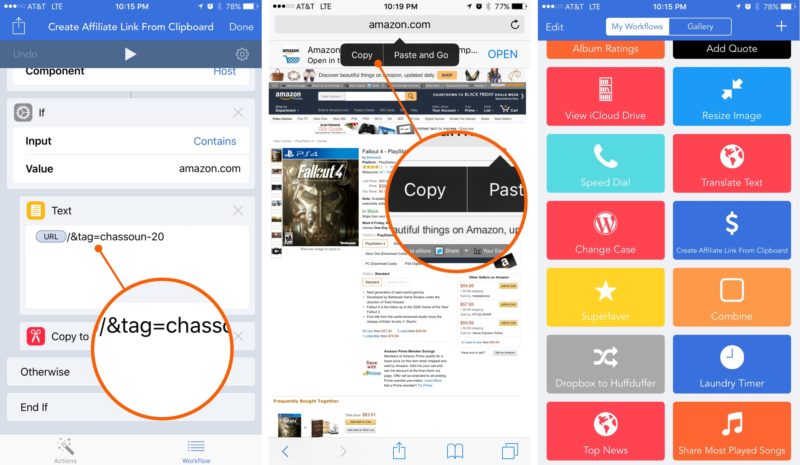
You can make easy or complex workflows to string data and apps together. There’s a great gallery of workflows right in the app, and also a helpful subreddit where people collaborate on workflows they want to see. The one we’re going to focus on is the Create Affiliate Link From Clipboard workflow, which will help us create Amazon affiliate links. After downloading the workflow, you’re going to want to change the text after &tag to your Amazon affiliate link (this will be remembered for future use).
- In Safari, go to Amazon and find a product you’d like to link to.
- Long press the address bar to copy that link.
- Run the workflow and your new affiliate link will be copied.
- You can now share that link to Facebook, Twitter, iMessage, or anywhere else you’d like.
- $3.99 – Download
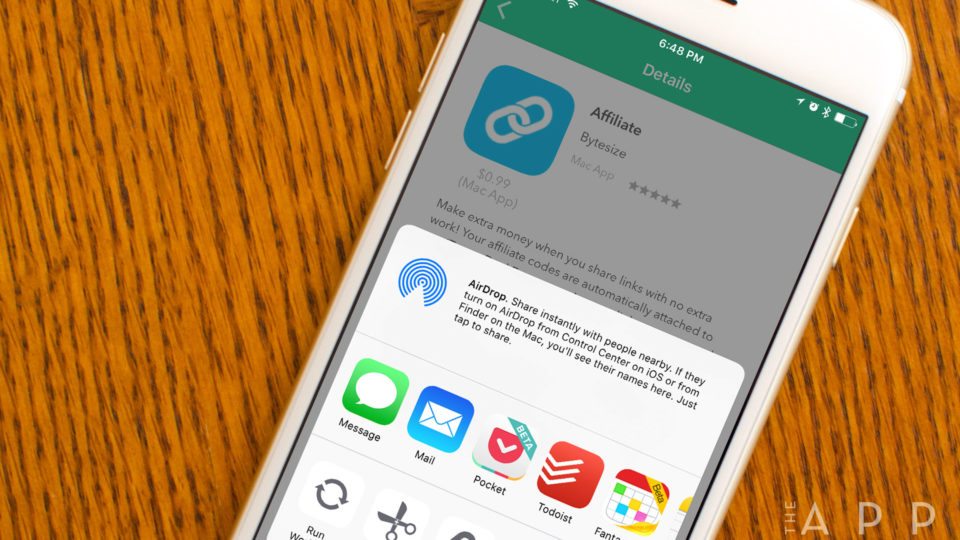
That’s all it takes to create links right from your iPhone or iPad! If you’re looking for a great affiliate link maker for your Mac that lives in your menubar, check out Affiliate from Bytesize — it’s only $0.99, and it allows you to make affiliate links for Apple and Amazon just by copying a products link to your clipboard.
If you have any questions about affiliate links, leave them in the comments below!


Another option for iOS that’s more specialized than Workflow is Rivet, which does Amazon and iTunes affiliate links: http://rivet.link
Disclaimer – I am the author of said app 🙂
Best,
Cory