
The iPhone 6s and iPhone 8 Plus let you take Live Photos that literally come alive when you press on them. But what if you want to share them to services that don’t yet support Live Photos? Or with friends that don’t have an iPhone 7s? You guessed it, there’s are already apps for that. Here’s how to post live Photos to Instagram, Facebook, and more — the easy way:
The way these kinds of apps work is by allowing you to export your video as either a GIF or as an actual video. Depending on where you want to put your video, you may want to choose a different export setting.
How to post Live Photos to Instagram, Facebook, and Twitter (video how-to)
If your main goal is posting Live Photos to Instagram or Facebook, you’ll want to make sure you export as a movie or video, not GIF. It’s also worth noting that Lively lets you toggle sound in your video on or off, something other apps like Live GIF currently don’t seem to support. Once you pick your Live Photo, just choose the video tab and then toggle the sound on or off if you’d like (there’s a small volume thumbnail in the bottom left of your video preview).
While you can use the Share sheet to share to a specific service, you’ll need to save your new video in order to share it to Instagram. This is the method I prefer since I can then share it to Twitter and Facebook in one shot using Instagram.

How to share Live Photos in Messages and email
For sharing Live Photos with friends and family via private messages, I prefer using the GIF option. Not only are the files smaller which allows them to send faster, it’s more convenient than tapping a video to play it, and the animation will loop on its own. In some cases, that makes some Live Photos even more entertaining, especially if they’re comical ones.
Lively is my favorite app here too since you can adjust the speed and length of GIFs using the slider bar. Not only can you share GIFs created this way via Messages and Mail, but to virtually any app that supports Share extensions.

Managing and cleaning up Live Photos
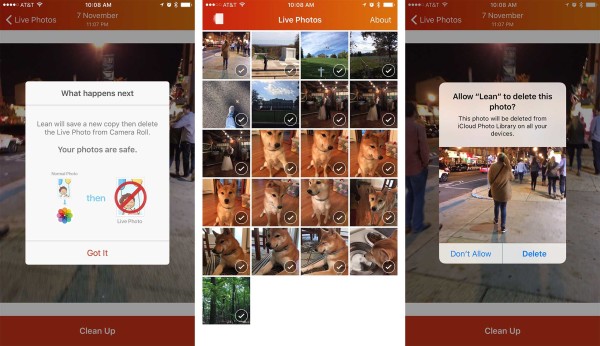
Unfortunately, Apple doesn’t have a dedicated album that lets you easily pick out which photos are live and which ones aren’t. Perhaps that’ll come in iOS 10. For now, there are other apps that can pick up the slack. My favorite is Lean which gives you an easy way to see which photos are live, delete them, and even strip out the live version in order to save storage space. (I constantly forget to turn the Live Photo feature off when I’m done using it.)
I’ve seen a few of these apps cropping up on the App Store. So far I’ve found Lean to be the most user-friendly and accurate.
- Lean – Free – Download
Time to post your Live Photos to Instagram
If you have an iPhone 7s or 7s Plus, give one of these apps a try to get your Live Photos to Instagram, Facebook, or wherever else — and let me know in the comments which app you prefer and why!
Editor’s note: This article was updated on October 17, 2017


